
ChatGPT can now make animated GIFs. The feature arrived with ChatGPT Images 2.6, which also lets you save a photo once and reuse it in later chats by typing its name. This guide shows you how to create a looping GIF from a prompt, animate a still image or sketch, change the result, and set up a saved reference photo, with prompts you can copy.
Key takeaways
- ChatGPT Images 2.6 adds looping GIFs from a prompt, and OpenAI’s help page says it is still rolling out.
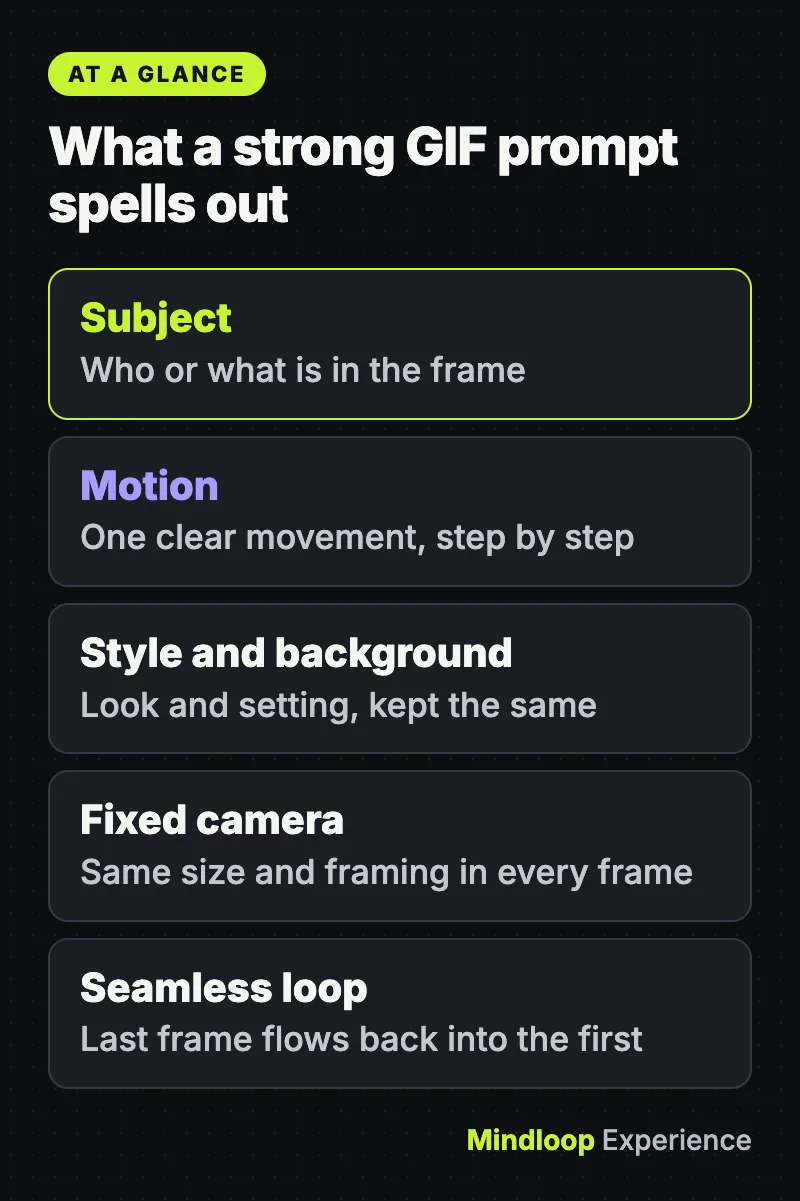
- Name the subject, motion, style and background, and ask for a fixed camera and a seamless loop.
- Upload a still image or sketch to animate it; ChatGPT cannot edit an animated GIF you upload.
- Save a photo as a named reference, then call it with @ in later chats instead of re-uploading.
As of 15 November 2026, OpenAI’s help page still describes GIF creation as “rolling out”, so it may not have reached your account yet.
What changed in Images 2.6
OpenAI released Images 2.6 on 4 November 2026. In its launch post, the company says the new model generates images 50% faster than before and keeps characters, products and brand details more consistent as you edit. Two features are new in ChatGPT, according to the release notes:
- GIF creation. Ask for a looping animation, or upload a sketch and ask ChatGPT to make the character wave.
- Saved reference images. Save a photo under a name, then mention it with @ in a later chat instead of uploading it again.
OpenAI says Images 2.6 is available in ChatGPT across all subscription tiers on desktop, mobile and web. The Images help article lists ChatGPT Images as available on all tiers, on web, iOS and Android.
What you need
- A ChatGPT account, signed in on the web or in the iOS or Android app.
- For animating your own picture: a still image (a photo, drawing or logo) that you have the right to use.
- A little patience. OpenAI notes that image generation may take a few minutes, depending on the request. You can keep using ChatGPT while it works.
By the numbers
50%faster image generation
4 November 2026Images 2.6 release date
Step 1: Open Images, or just start a chat
You don’t need a special mode. You can ask for a GIF in any conversation. If you prefer the dedicated space, the help article gives two routes:
- Open the sidebar and select Images.
- Or, in a chat, select More and then select Images.
Step 2: Ask for a looping GIF
Type what you want and say what should move. OpenAI’s own example prompt is:
Make a looping GIF of a paper boat bobbing on the water.Expected result: ChatGPT generates a short animation that repeats. The more clearly you describe the motion, the better. A prompt that names the subject, the movement, the style and the background usually beats a one-liner:
Make a looping GIF of a small orange cat tapping a laptop keyboard with one paw.
Flat cartoon style, soft pastel colors, plain light-blue background.
Keep the camera fixed and the cat the same size in every frame.
The last frame should flow back into the first so the loop looks seamless.
The details in that second prompt are borrowed from the example prompts shown in OpenAI’s launch post, which ask for a fixed camera, the same character and background throughout, clear step-by-step motion, and a final frame that transitions smoothly toward the first.
Step 3: Animate a still image or a sketch
You can also start from a picture.
- Upload a still image to the chat.
- Ask ChatGPT to animate it, and say which part should move.
Animate this drawing as a looping GIF. Make the character wave with their right hand.
Keep everything else in the picture still.
On the mobile app you can draw the starting image yourself. In the message box, type @ and select Sketch, draw, select the checkmark to confirm, then add your instructions and send.
Step 4: Change the GIF
To edit a GIF that ChatGPT created, describe the change in the conversation. For example:
Same GIF, but make the background dark green and make the wave a little bigger.Keep the animation exactly as it is, but add a small red scarf to the cat.One limit to know: ChatGPT can’t edit an animated GIF that you upload. Edits work on GIFs it generated, or on still images you upload and ask it to animate.
Did you know?
ChatGPT can’t edit an animated GIF that you upload. Edits work only on GIFs it generated, or on still images you upload and ask it to animate.
Step 5: Adjust the speed, then save or share
Open the GIF. From there, the help article says you can adjust its playback speed, save it to your device, or share it.
OpenAI’s help text doesn’t name the individual buttons for GIFs, so look for the speed, save and share controls once the GIF is open. For still images, the equivalent controls are labelled Copy, Save and Share.
OpenAI says all images you create are saved automatically under Images on web and mobile, so that’s the first place to look for an earlier GIF.
Step 6: Save a reference photo and reuse it with @
This is the second new feature, and it saves a lot of re-uploading if you often make images of the same pet, person or product.
- Upload a photo and ask ChatGPT to save it as a reference.
- Choose a name for the reference and save it. ChatGPT may also offer to save a photo when you describe it, for example as a picture of your dog.
- In a later chat, type @ followed by the saved name in your prompt.
Save this photo as a reference called Pepper.Make a watercolor portrait of @Pepper.You can combine the two features. Once a reference is saved, a prompt like this should work without a new upload:
Make a looping GIF of @Pepper wagging her tail in a sunny garden. Cartoon style.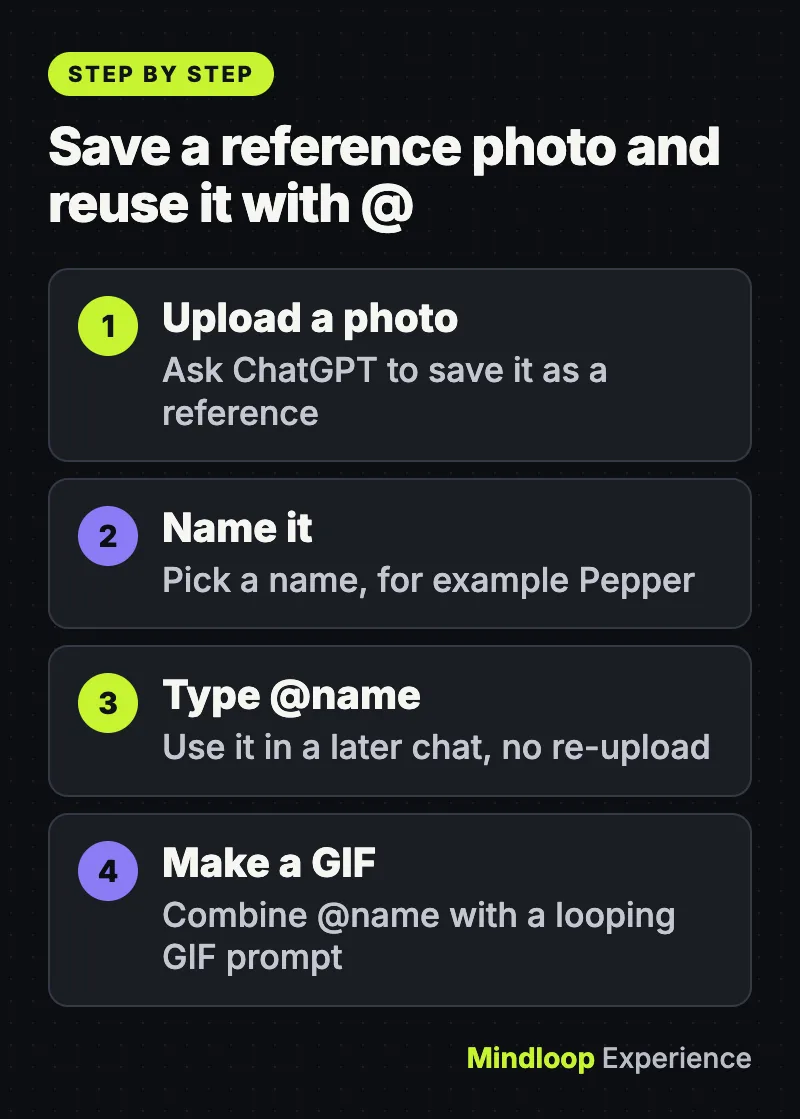
Prompt recipes to copy
Reaction GIF:
Make a looping reaction GIF of a cartoon coffee mug jumping with joy,
arms in the air, small sparkles around it. White background. No text.
Product loop:
Animate this product photo as a looping GIF. Rotate the bottle slowly by a few
degrees left and right. Keep the label sharp and unchanged. Plain background.
Logo or mascot:
Animate this mascot as a looping GIF. It blinks once and gives a small nod.
Do not change its colors, proportions or outline.
Storyboard test:
Make a looping GIF of a paper plane flying from the left edge to the right edge
in a gentle arc, then reappearing at the left. Hand-drawn pencil style.Common errors and fixes
- ChatGPT returns a still image, or says it can’t make GIFs. The feature is still rolling out. Say “looping GIF” explicitly in your prompt, and if that doesn’t help, try again in a few days.
- You uploaded a GIF and ChatGPT won’t change it. That’s expected. It can’t edit an animated GIF you upload. Upload a still frame instead and ask it to animate that.
- The character changes between frames. Ask for a fixed camera and the same character, outfit and background in every frame, and describe one simple motion rather than several.
- The loop jumps at the end. Add “the last frame should flow back into the first”.
- @name doesn’t bring up your photo. Check that you actually saved the reference with a name first, and type the name exactly as you saved it.
- You want to delete a generated image or GIF. Delete the conversation where it was created. On the web, hover over the conversation title, select the more options menu (•••), then Delete. On iOS and Android, press and hold the conversation title, then select Delete.
- You want to remove a saved reference photo. The Images help article doesn’t say where saved references are managed. An earlier release note, for the virtual try-on feature, says try-on reference photos can be changed or deleted in Settings → Personalization → Reference photos; it’s worth looking there, but OpenAI hasn’t confirmed that it covers references saved this way.
- A teen account can’t create images. A parent or guardian with a linked account may be able to control whether a teen can create or edit images.
A note on photos of people
A saved reference is kept so it can be reused in later chats, so think before saving someone else’s face. Only save photos you have the right to use, and ask first if the person isn’t you.
OpenAI’s provenance page says images generated with ChatGPT include Content Credentials metadata and an invisible SynthID watermark. The page doesn’t mention GIFs separately. Metadata can also be lost when a file is converted or screenshotted, so don’t treat any single signal as proof either way.
Did you know?
OpenAI says images generated with ChatGPT include Content Credentials metadata and an invisible SynthID watermark, though that metadata can be lost when a file is converted or screenshotted.
Wrap-up
Making a GIF in ChatGPT is now a one-prompt job: say “looping GIF”, describe the motion, and refine it by talking. Upload a still image or a sketch if you want to animate something specific, and save your most-used photo as a named reference so you can call it up with @. If the option isn’t there yet, give the rollout a few more days.
Images 2.6 is one of several ChatGPT changes this month. Voice users should read how to switch to GPT-Live before the old voice modes retire, and our ChatGPT Wallet explainer covers agent payments. If you’d rather sketch ideas on a canvas, see how to use Claude Whiteboards.
Frequently asked questions
Can ChatGPT make animated GIFs?
Yes. ChatGPT Images 2.6 can create looping GIFs from a prompt or animate a still image or sketch. As of 15 November 2026 OpenAI’s help page still describes GIF creation as rolling out, so it may not be in every account yet.
Is ChatGPT GIF creation free?
OpenAI says Images 2.6 is available in ChatGPT across all subscription tiers on desktop, mobile and web, and the Images help article lists ChatGPT Images as available on all tiers on web, iOS and Android.
Why does ChatGPT give me a still image instead of a GIF?
The feature is still rolling out. Say looping GIF explicitly in your prompt, and if that doesn’t help, try again in a few days.
Where are my ChatGPT GIFs saved?
OpenAI says all images you create are saved automatically under Images on web and mobile. When a GIF is open you can adjust its playback speed, save it to your device, or share it.
Quick quiz
What do you type to use a saved reference photo in a later chat?
- # then the name
- @ then the name
- / then the name
In a later chat you type @ followed by the saved name in your prompt.
What happens if you upload an animated GIF and ask ChatGPT to change it?
- It can’t edit it
- It edits it instantly
- It converts it to video
ChatGPT can’t edit an animated GIF that you upload; upload a still frame instead.
How much faster does OpenAI say Images 2.6 generates images?
- 10%
- 25%
- 50%
OpenAI’s launch post says the new model generates images 50% faster than before.
Sources
Links last checked on 15 November 2026.

Write a response