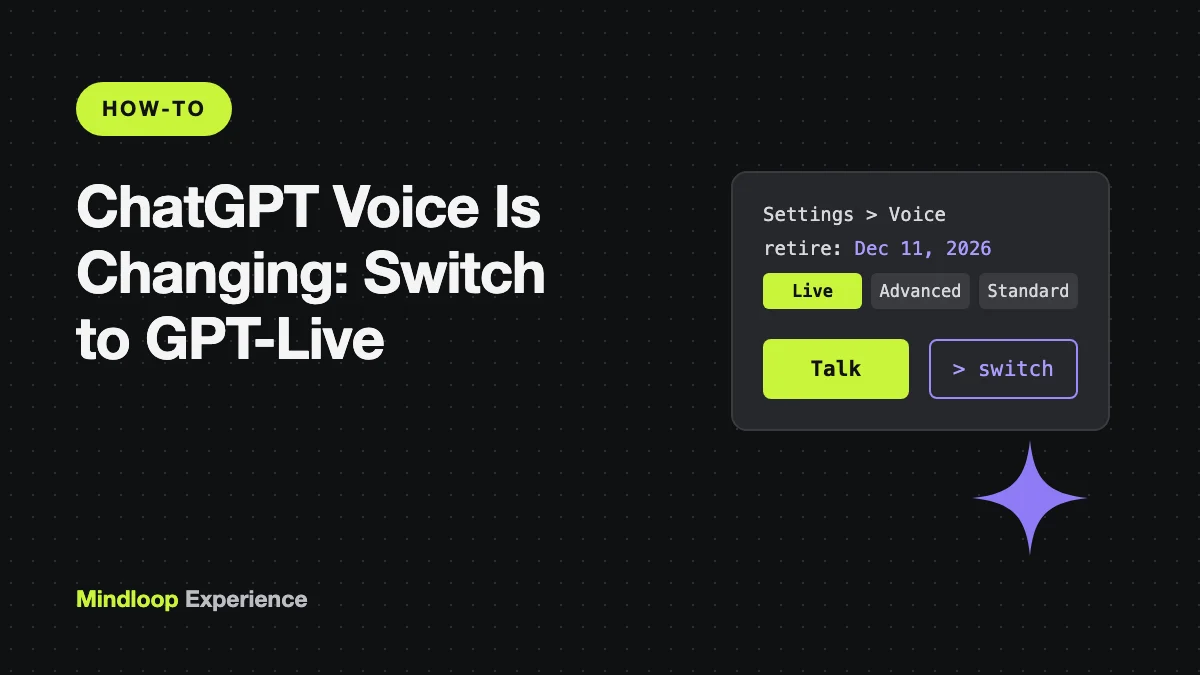
OpenAI is retiring ChatGPT’s Advanced and Standard voice modes on 11 December 2026. After that date, every voice conversation runs on GPT-Live, the full-duplex voice model OpenAI introduced in July. This guide explains what changes, what doesn’t, and how to switch now so the change doesn’t catch you out, along with the limits on each plan and the settings worth checking.
Everything here is from OpenAI’s help centre, release notes and GPT-Live announcement, as of 14 November 2026.
What’s happening, in short
On 10 November, OpenAI announced: “We’re retiring Advanced and Standard voice from ChatGPT Voice on December 11, 2026.” Its help article sets out the timeline:
| Date | What happens |
|---|---|
| 10 November 2026 | Users are notified. You can keep using Advanced or Standard voice for now. |
| 11 December 2026 | You can no longer pick Advanced or Standard in Settings > Voice. If you’d chosen one of them, you’re moved to Live automatically. |
Your old voice chats aren’t deleted. OpenAI says they “remain in your ChatGPT history and can be continued in text or voice.”
What GPT-Live is
GPT-Live launched on 8 July 2026. According to OpenAI, it’s “built on a full-duplex architecture, meaning it can listen and speak at the same time.” That’s why conversations feel more natural: you can interrupt it, and it can respond while you’re still finishing a thought. For questions that need web search or deeper reasoning, OpenAI says it “delegates to our latest frontier model behind the scenes.”
The current versions are GPT-Live-1.1 and the lighter GPT-Live-1.1 Quip. Which one you get depends on your plan. In ChatGPT, Live can use web search and memory, show visual results, work with text and images in the same chat, and use the plugins and connected apps on your account.
The three modes you might see under Settings > Voice until 11 December:
- Live: the new default, powered by GPT-Live.
- Advanced: the previous real-time voice. It’s still the only option for video and screen sharing.
- Standard: turn-by-turn voice that transcribes your speech first, then replies.
What you need
- A ChatGPT account. Live is available on every consumer plan, including Free, and in eligible Business, Enterprise, Edu and Healthcare workspaces, depending on what your admin allows.
- The ChatGPT app for iOS or Android, or chatgpt.com in a browser. Voice in the desktop app needs a Plus, Pro, Business, Edu or Enterprise plan.
- A working microphone and permission for ChatGPT to use it.
Step 1: Switch to Live now
Switching early gives you about four weeks to get used to it while the old modes are still there as a fallback.
- Open ChatGPT and go to Settings > Voice.
- In the mode picker, choose Live.
- While you’re there, tap Voice to pick a voice, and check Language if you don’t speak English.
If you never changed this setting, you may already be on Live.
Step 2: Start a voice conversation
On iPhone or Android:
- Tap the Voice icon in the message bar.
- If asked, allow the app to use your microphone.
- On your first conversation, choose a voice.
- Start speaking. Use the microphone control to mute yourself and the exit control to end the conversation.
On the web:
- Go to chatgpt.com.
- Click the Voice icon in the prompt box.
- Allow your browser to use the microphone, then start speaking.
In the desktop app: select Start voice chat in an existing task, or Start new voice chat for a new one. Select Stop voice chat when you’re done. You can also set a hotkey under Settings > Voice > Voice chat hotkey.
While Live is running, you can type or attach an image with the add button, and ChatGPT will keep answering in voice in the same chat.
Step 3: Turn on the handy extras
Two settings under Settings > Voice are worth knowing about:
- Background conversations lets a voice chat keep going while you use other apps or lock your phone.
- Start with Voice (supported mobile versions) opens a new, empty chat straight into Voice.
How much Live you get on each plan
OpenAI measures Live usage over a rolling 24-hour period:
| Plan | Daily Live allowance |
|---|---|
| Free | Limited access to GPT-Live-1.1 Quip (“Limits may change”) |
| Go | 3 hours with GPT-Live-1.1 Quip |
| Plus | 3 hours with GPT-Live-1.1 |
| Pro ($100/month) | 15 hours with GPT-Live-1.1 |
| Pro ($200/month) | Unlimited GPT-Live-1.1, subject to abuse guardrails |
| Business Standard | 3 hours, then 1.25 credits per minute |
| Business Premium | 15 hours, then 1.25 credits per minute |
Enterprise and Edu plans have their own credit or per-minute rates. Ask your admin. If you’re setting up a team workspace, our ChatGPT Business setup guide covers the plans.
What you lose (for now)
- Video and screen sharing. “Live does not support video or screen sharing.” OpenAI says these “will continue to be powered by Advanced voice until GPT-Live has this capability.” Its pages don’t yet say what happens to them after 11 December. If you rely on pointing your camera at things, test this before then.
- Custom GPTs in voice. OpenAI says: “Voice with custom GPTs will continue using Advanced voice until their deprecation on December 11, 2026.” If you talk to a custom GPT by voice, plan for that to change.
- Preset personalities. “Preset ChatGPT personalities do not currently apply to Live.”
- Library files. Live “cannot currently find or add files from your ChatGPT Library.” You can still attach a file to the chat manually, depending on your account.
- Group use. Live is “not yet optimized for conversations with multiple speakers,” so it struggles in a meeting room.
Privacy: what happens to your voice
- Audio clips from Live are stored with the chat transcript and kept for 30 days. If you delete the chat, the clips are deleted within 30 days too, with exceptions for security or legal reasons.
- OpenAI doesn’t train on your audio unless you opt in. Free, Plus and Pro users can check this under Settings > Data Controls. The Include your audio recordings toggle sits under Improve the model for everyone.
- Transcripts follow your normal Improve the model for everyone setting.
- Parents can block teens from using Voice through Parental Controls.
Common errors and fixes
- No Voice icon. Update the app. On a work account, your admin may have turned Voice off in workspace settings.
- Voice can’t hear you. Give ChatGPT microphone permission in your phone’s settings, or in your browser’s site settings on the web.
- Voice ends suddenly. A session can end when you hit your plan’s usage limit, the maximum session length or the context limit. Start a new voice chat, or keep going in text.
- It won’t take a spoken “yes” for a plugin action. That’s by design. OpenAI says “spoken approval is not supported”, so tap to approve.
- The video button disappeared. You’re on Live. Switch to Advanced in Settings > Voice until 11 December.
- Odd accent in another language. OpenAI warns that for some languages “the model may have a non-native accent or gaps in fluency.” Set the Language under Settings > Voice explicitly.
Wrapping up
For most people the change will be small. Live has been rolling out to every plan since July, and it’s the faster, more natural mode. The ones who need to act before 11 December are those who rely on video or screen sharing, custom GPTs in voice, or Standard mode’s turn-by-turn style. Switch to Live today, try your usual tasks, and note what’s missing. For more on what ChatGPT can now do on its own, see our explainer on ChatGPT Wallet.
Write a response