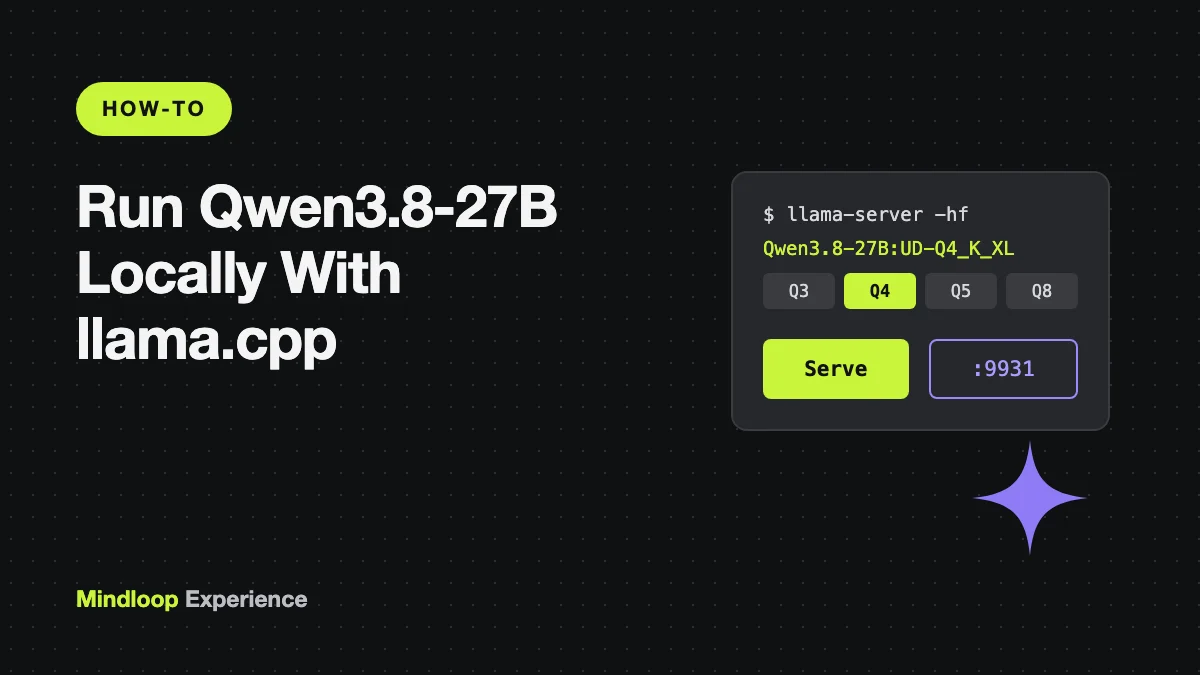
Two things landed on 13 November 2026 that make this a good week to try a strong local model. The ggml library behind llama.cpp reached version 1.0.0, and llama.cpp released its own v1.0.0. Two days earlier, Unsloth updated its popular GGUF builds of Qwen3.8-27B, a 27-billion-parameter open model with vision and reasoning. This guide shows you how to run it on your own computer with llama.cpp, chat with it, and serve it through an OpenAI-compatible API.
Commands come from the llama.cpp docs, Unsloth’s Qwen3.8 guide and the Qwen model card, as of 14 November 2026.
What you’re installing
- Qwen3.8-27B is a dense 27B model from Alibaba’s Qwen team, released under the Apache 2.0 licence. It handles text and images, and supports a native context of 262,144 tokens. Thinking (step-by-step reasoning) is on by default.
- GGUF is the model file format llama.cpp uses. Unsloth publishes compressed (“quantized”) versions in the repo
unsloth/Qwen3.8-27B-GGUF. - llama.cpp is a free, open-source engine that runs GGUF models on Mac, Windows and Linux, using your GPU or Apple Silicon when it can.
What you need
- Memory: Unsloth’s guide says the 4-bit build needs 16–19 GB of combined RAM and VRAM, for example an RTX 4090 or 5080, or a Mac with 24 GB of RAM. The 3-bit build fits in 12–14 GB.
- Disk space: about 18 GB for the recommended 4-bit file.
- A terminal: Terminal on macOS, PowerShell on Windows, or any Linux shell.
Pick a quant that fits your machine. These are the file sizes in Unsloth’s repo:
| Quant | File size | Good for |
|---|---|---|
| UD-Q3_K_XL | 13.15 GB | 16 GB machines, if you accept some quality loss |
| UD-Q4_K_XL | 17.66 GB | The recommended default (24 GB Macs, 24 GB GPUs) |
| UD-Q5_K_XL | 20.98 GB | More quality, if you have the room |
| Q8_0 | 29.05 GB | Near-full quality on 32 GB+ machines |
Step 1: Install llama.cpp
The llama.cpp install docs list a package for every major system.
On macOS or Linux, with Homebrew:
brew install llama.cppOn Windows:
winget install llama.cppOpen a new terminal afterwards and check that the server program is on your PATH:
llama-server --versionThe llama.cpp README also has a new one-line installer (curl -LsSf https://llama.app/install.sh | sh) that sets up a single llama command, so llama serve -hf <repo> starts a server. This guide uses llama-server, because that’s the program whose options are fully documented.
Step 2: Download and start Qwen3.8
The -hf option downloads a model straight from Hugging Face. Put the quant name after a colon:
llama-server -hf unsloth/Qwen3.8-27B-GGUF:UD-Q4_K_XL -c 32768The first run downloads about 18 GB, and you can watch the progress in the terminal. The vision add-on file (the “mmproj”) is downloaded automatically. -c 32768 sets a 32K context. A smaller context uses less memory, and you can raise it later.
Always name the quant. The llama.cpp docs say -hf defaults to Q4_K_M and otherwise falls back to the first file in the repo. Unsloth’s repo has no plain Q4_K_M file, so leaving it out could download a different file than you expect.
Step 3: Chat in your browser
In llama.cpp 1.0, the server listens on 127.0.0.1:9931 by default, not the 8080 used by older tutorials. When the terminal says the model is loaded, open http://127.0.0.1:9931 for the built-in chat page. To check from another terminal that it’s ready:
curl http://127.0.0.1:9931/healthStep 4: Call it like the OpenAI API
The server has an OpenAI-compatible endpoint at /v1/chat/completions. This request uses Unsloth’s recommended thinking-mode settings:
curl http://127.0.0.1:9931/v1/chat/completions \
  -H "Content-Type: application/json" \
  -d '{
    "messages": [{"role": "user", "content": "Explain what a GGUF file is in two sentences."}],
    "temperature": 1.0,
    "top_p": 0.95,
    "top_k": 20,
    "min_p": 0.0
  }'
The answer is in choices[0].message.content. Any tool that lets you set a custom OpenAI base URL can use http://127.0.0.1:9931/v1, and most accept any value as the API key.
Step 5: Control thinking
Thinking mode gives better answers on hard problems but takes longer. Qwen’s model card says thinking “is on by default and can be disabled per request”. Add this to the JSON body to turn it off:
"chat_template_kwargs": {"enable_thinking": false}When thinking is off, Unsloth recommends temperature 0.7, top_p 0.80, top_k 20, min_p 0.0 and presence_penalty 1.5. To keep thinking but make it shorter, set the reasoning effort when you start the server. The levels are xhigh (the default), medium, low and none:
llama-server -hf unsloth/Qwen3.8-27B-GGUF:UD-Q4_K_XL -c 32768 --chat-template-kwargs '{"reasoning_effort":"medium"}'On Windows PowerShell, escape the quotes the way Unsloth’s guide shows: --chat-template-kwargs "{\"reasoning_effort\":\"medium\"}".
Alternative: build from source (Unsloth’s method)
Unsloth’s guide builds llama.cpp from source and downloads the file with the Hugging Face CLI, which suits Linux machines with NVIDIA GPUs. Its build commands use apt-get, so they’re for Debian or Ubuntu. On a Mac, change -DGGML_CUDA=ON to -DGGML_CUDA=OFF, because Metal is on by default.
apt-get update
apt-get install pciutils build-essential cmake curl libcurl4-openssl-dev -y
git clone https://github.com/ggml-org/llama.cpp
cmake llama.cpp -B llama.cpp/build \
    -DBUILD_SHARED_LIBS=OFF -DGGML_CUDA=ON
cmake --build llama.cpp/build --config Release -j --clean-first --target llama-cli llama-mtmd-cli llama-server llama-gguf-split
cp llama.cpp/build/bin/llama-* llama.cpp
pip install -U "huggingface_hub[cli]"
hf download unsloth/Qwen3.8-27B-GGUF \
--local-dir unsloth/Qwen3.8-27B-GGUF \
--include "*UD-Q4_K_XL*"./llama.cpp/llama-cli \
--model unsloth/Qwen3.8-27B-GGUF/Qwen3.8-27B-UD-Q4_K_XL.gguf \
--temp 1.0 \
--top-p 0.95 \
--top-k 20 \
--min-p 0.0Prefer Ollama? It also has the model. ollama run qwen3.8:27b downloads an 18 GB build. Our Ollama beginner’s guide covers the setup.
Common errors and fixes
llama-server: command not found. Open a new terminal so your PATH updates. If you used the llama.app installer, you only have thellamacommand, so usellama serveor install with Homebrew or winget.- The download keeps fetching the wrong file. Add the quant after a colon (
:UD-Q4_K_XL). See Step 2. - Out-of-memory crash or very slow output. Try the 3-bit
UD-Q3_K_XL, lower the context with-c 8192, or close other heavy apps. If the model doesn’t fit in VRAM, layers spill into system RAM, which is much slower. - “Connection refused” on port 8080. llama.cpp 1.0 uses 9931 by default. Use
--port 8080if a tool expects the old port. - Endless thinking or rambling answers. Use the recommended sampling settings above, lower
reasoning_effort, or turn thinking off for simple tasks. - The PowerShell JSON flag fails. Escape the inner quotes as shown in Step 5.
Wrapping up
With llama.cpp 1.0 and a single -hf command, running a capable 27B model locally comes down to one install and one command. Start with the 4-bit build, use the API on port 9931 from your own tools, and turn thinking down when you don’t need it. If you’d like an AI coding agent to drive a browser or other tools next, see our guide to Chrome DevTools MCP.
Write a response