One AI coding agent in a project is simple. Two in the same folder is a mess: they edit the same files, share one checked-out branch and overwrite each other’s work. Git worktrees are the built-in fix, and this guide shows you how to use them to run several agents side by side, each on its own branch, then review and merge the results.
Key takeaways
- A Git worktree is an extra working folder with its own files and branch, sharing one history with the repository.
- Create one worktree and one new branch per task with git worktree add -b, then copy .env and reinstall dependencies.
- Start a separate agent in each worktree and give it a narrow task in a different area of the code.
- Review every branch with git log and git diff before merging, then remove the worktrees and delete merged branches.
The method works with any terminal-based coding agent. Every Git command below was run on Git 2.53 and checked against the official git-worktree documentation, last updated for Git 2.56.
Why agents need separate folders
A Git worktree is an extra working folder attached to the same repository. Each worktree has its own files and its own checked-out branch, but they all share one history. In Git’s words, a linked worktree shares “everything except per-worktree files such as HEAD, index, etc.”
| Shared by every worktree | Separate in each worktree |
|---|---|
| Commits and history | The files on disk |
| Branches and tags | The checked-out branch (HEAD) |
| Repository config | The staging area (index) |
Untracked and ignored files, such as .env or node_modules |
That split is what parallel agents need: isolated files, one shared history to merge back into.
Several tools now build this in. Cursor can put each agent in its own worktree, Codex can start a chat in one, and Claude Code has a --worktree flag. Doing it by hand takes a few commands, works with every agent and shows you what those features do underneath.

What you need
- Git. Check with
git --version. - A repository with at least one commit.
- A coding agent you can start from a terminal.
- Disk space for a second (or third) copy of your project’s files and dependencies.
The examples use a project folder called my-app with a main branch. Swap in your own names.
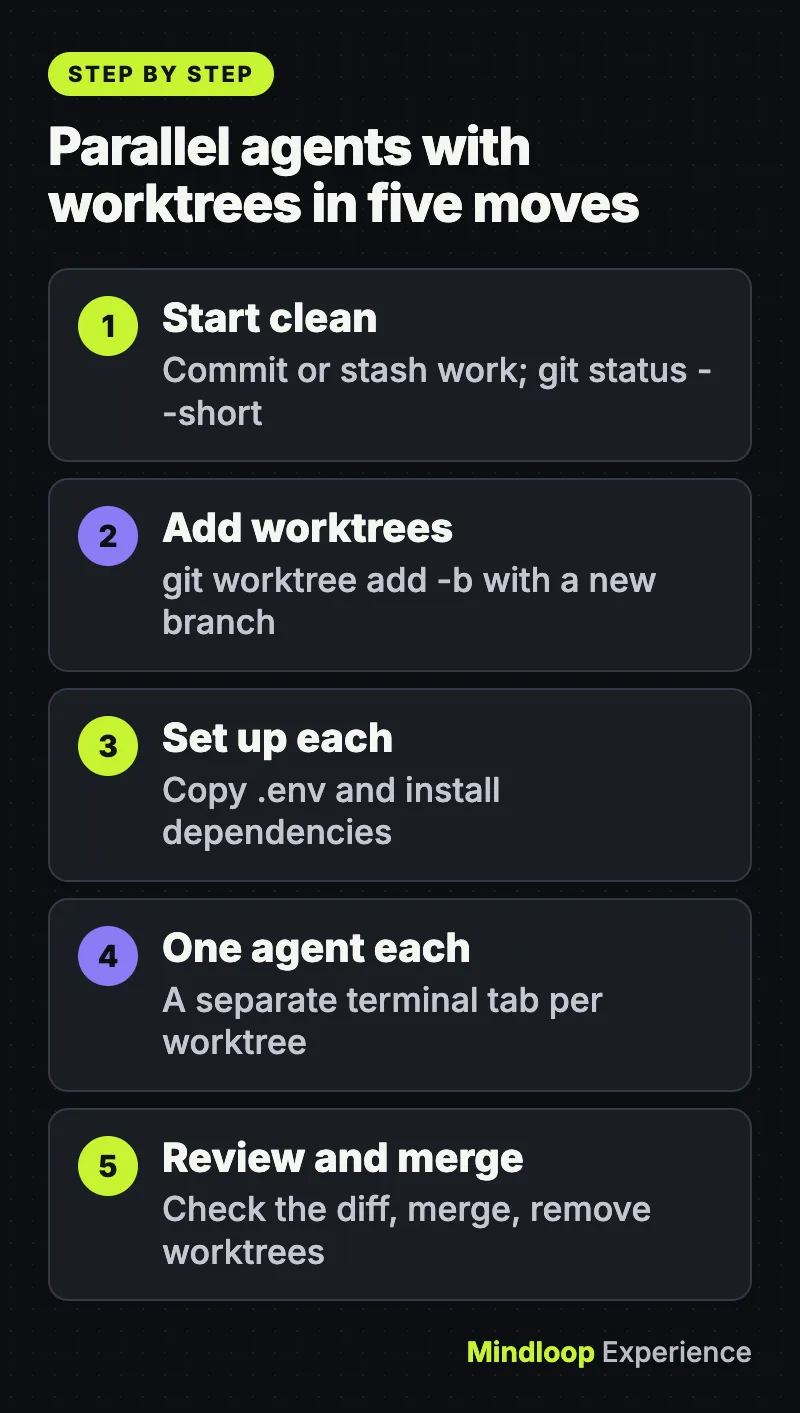
Step 1: Start from a clean main branch
New worktrees start from your current commit, so commit or stash unfinished work first. From the project folder:
git status --shortNo output means the folder is clean.
Step 2: Create one worktree per task
Give each task its own folder and its own new branch. Here there are two tasks, a login fix and a search feature:
git worktree add -b fix-login ../my-app-login
git worktree add -b add-search ../my-app-search
Expected output for the first command:
Preparing worktree (new branch 'fix-login')
HEAD is now at 61730c6 Initial commit
-b fix-login creates a new branch, and ../my-app-login is where the new folder goes: next to your project, not inside it. Check the result:
git worktree list/home/user/code/my-app 61730c6 [main]
/home/user/code/my-app-login 61730c6 [fix-login]
/home/user/code/my-app-search 61730c6 [add-search]Step 3: Set up each worktree
A new worktree is a fresh checkout. It contains only files that Git tracks, so anything listed in .gitignore is missing: environment files, installed packages, build output. Copy or recreate what the project needs to run. If it uses an .env file, for example:
cp .env ../my-app-login/.env
cp .env ../my-app-search/.env
Then install dependencies inside each worktree with your usual command (npm ci, uv sync and so on). Cursor’s docs advise against symlinking dependencies into a worktree because it can cause problems in the main one. Install them properly instead.
If the project starts a dev server, give each worktree a different port so the agents’ servers don’t collide.
Did you know?
A new worktree contains only files Git tracks, so anything in .gitignore, such as .env files and installed packages, is missing until you copy or reinstall it.
Step 4: Start one agent per worktree
Open a separate terminal tab or window for each worktree, move into it and start your agent the way you normally do. With the open-source Qwen Code, for example:
cd ../my-app-login
qwen
Do the same in ../my-app-search in a second tab. Each agent now works in its own folder, on its own branch.
Give each agent a narrow task with a clear finish line. A prompt that works well:
Fix the login bug where a wrong password shows a blank page.
Only change files needed for this fix. Run the tests, and when
they pass, commit your work to the current branch.
Two habits make parallel work go smoothly:
- Split tasks by area. Two agents rewriting the same file will produce a merge conflict later. Pick tasks that touch different parts of the code.
- Put shared rules in a tracked file. AGENTS.md is an open format for instructions to coding agents (setup commands, test commands, code style). Commit it and every new worktree gets a copy automatically. Our guide to agent skills in Claude Code covers a related way to package instructions.
Step 5: Review each branch
You don’t have to leave your main folder to see what an agent did. git -C <path> runs a command as if you were in that folder:
git -C ../my-app-search status --short?? scratch.txtThat shows a leftover file the agent created but didn’t commit. Commit or delete leftovers like this now, because Git refuses to remove a worktree that still has them. To see the commits and changes a branch adds on top of main:
git log --oneline main..fix-login
git diff --stat main...fix-login873a385 Fix login
app.py | 1 +
1 file changed, 1 insertion(+)Drop --stat to read the full diff. Read it properly: an agent’s “done” isn’t proof the change is right. If the project is a website, an agent with browser access can check its own work, as described in our Chrome DevTools MCP guide.
Step 6: Merge and clean up
From your main folder, merge each finished branch:
git merge fix-login
git merge --no-edit add-searchUpdating 61730c6..873a385
Fast-forward
app.py | 1 +
1 file changed, 1 insertion(+)
Merge made by the 'ort' strategy.
search.py | 2 ++
1 file changed, 2 insertions(+)
create mode 100644 search.pyIf you work with a team, push each branch and open a pull request instead of merging locally. Our SSH keys guide covers passwordless access to a remote server.
Then remove the worktrees and delete the merged branches:
git worktree remove ../my-app-login
git worktree remove ../my-app-search
git branch -d fix-login add-search
git worktree remove deletes the folder, including ignored files in it such as the copied .env. Run git worktree list again and only your main folder should remain.
Did you know?
git worktree remove deletes the whole folder, including ignored files such as a copied .env, and Git refuses to remove a worktree that still holds uncommitted leftovers.
Optional: a helper script
Once the routine is familiar, a short script saves typing. Save this as new-task.sh in your project, make it executable with chmod +x new-task.sh and commit it:
#!/usr/bin/env bash
set -euo pipefail

name="$1"
root="$(git rev-parse --show-toplevel)"
dir="$(dirname "$root")/$(basename "$root")-$name"

git worktree add -b "$name" "$dir"
if [ -f "$root/.env" ]; then
  cp "$root/.env" "$dir/.env"
fi
echo "Ready: $dir"
Running ./new-task.sh try-cache creates the branch try-cache in a sibling folder, copies .env and prints something like:
Preparing worktree (new branch 'try-cache')
HEAD is now at 8bca3c4 Merge branch 'add-search'
Ready: /home/user/code/my-app-try-cache
Common errors and fixes
fatal: 'fix-login' is already used by worktree at '...': a branch can be checked out in only one worktree at a time. Work in the folder that already has it, or create a new branch with-b.fatal: '../my-app-search' contains modified or untracked files, use --force to delete it: the agent left uncommitted work behind. Commit or delete those files, or rungit worktree remove --force ../my-app-searchif you’re sure nothing there matters.error: cannot delete branch 'add-search' used by worktree at '...': remove the worktree first, then delete the branch.error: the branch 'add-search' is not fully merged:git branch -dprotects unmerged work. Merge the branch, or usegit branch -D add-searchto throw the work away.git worktree listshows a folder markedprunable: the folder was deleted by hand instead of withgit worktree remove. Rungit worktree pruneto clear the stale entry.- The app won’t start in a worktree: ignored files weren’t copied. Recreate
.envand reinstall dependencies there (Step 3). - Merge conflicts in Step 6: two agents changed the same lines. Resolve the conflict by hand, or run
git merge --abortand ask one agent to redo its work on top of the updatedmain. fatal: not a git repository: .../.git/worktrees/my-app-loginafter you move or rename the main folder: rungit worktree repairfrom the main folder’s new location.- The project uses submodules: Git’s documentation says worktree support for submodules is incomplete and advises against multiple checkouts of such a project.
Wrap-up
Worktrees turn “one agent at a time” into a small team: one folder and one branch per task, a quick review with git diff, then a merge and a cleanup. Start with two agents on unrelated tasks, keep the prompts narrow, and check the diffs before you merge.
Frequently asked questions
What is a Git worktree?
An extra working folder attached to the same repository. Each worktree has its own files on disk, checked-out branch and staging area, while all of them share one commit history, branches, tags and repository config.
Can two worktrees use the same branch?
No. A branch can be checked out in only one worktree at a time, and Git stops you with an already used by worktree error. Work in the folder that has it, or create a new branch with -b.
Why won’t my app start in a new worktree?
A new worktree only contains files Git tracks, so ignored files such as .env and installed packages are missing. Copy the .env across and reinstall dependencies inside that worktree with your usual command.
How do I delete a Git worktree safely?
Commit or delete any leftover files, then run git worktree remove with the folder path and delete the merged branch with git branch -d. If you deleted the folder by hand, git worktree prune clears the stale entry.
Quick quiz
What does a linked worktree share with the main folder?
- Its staging area
- The commit history
- Its checked-out branch
Worktrees share one history but each has its own files, checked-out branch and index.
Which command clears a worktree whose folder was deleted by hand?
- git worktree prune
- git branch -D
- git merge –abort
Running git worktree prune clears the stale entry that git worktree list marks as prunable.
Why should parallel agents work on different areas of the code?
- Worktrees cannot share files
- Git limits agents per repository
- Editing the same file causes merge conflicts
The guide warns that two agents rewriting the same file will produce a merge conflict later.
Sources
Links last checked on 15 November 2026.


Write a response