A security researcher reports that a Windows 11 component records which AI coding agents you run, such as Claude, Codex, Copilot and Cursor, along with developer tools like Python, Node.js and VS Code, and sends that list to Microsoft as optional diagnostic data. This guide explains what was found, what is and isn’t sent, and how to check and turn the setting off on Windows 11 Home, Pro or a managed work PC.
Key takeaways
- A researcher reports that a Windows 11 component flags use of coding agents such as Claude, Codex, Copilot and Cursor.
- The report is a small bitmap of tool names, queued for upload only when optional diagnostic data is allowed.
- Turn off Send optional diagnostic data under Settings > Privacy & security > Diagnostics & feedback.
- Admins can lock devices to Required data with the Allow diagnostic data policy or the AllowTelemetry MDM setting.
What the researcher found
On November 16, 2026, researcher Xusheng Li published an analysis of a system file called MissionControlAggregator.dll. The post reached the Hacker News front page the same day. According to the analysis, the file compares the names of programs you run against a built-in list:
- 4 CLI-agent slots:
copilot.exe,claude.exe,codex.exeandagy.exe, plus the same names without.exewhen run inside WSL. - 5 desktop-agent slots:
github.exe,claude.exe,codex.exe,cursor.exeandantigravity.exe. - Developer tools: names such as
node.exe,python.exe,dotnet.exe,gcc.exe,clang.exe,gdb.exe,javac.exe,devenv.exeandcode.exe, grouped into 12 broader tool categories.
The DLL doesn’t scan your processes itself. It listens to events Windows already produces about which apps start and get used, sets a bit for each match, saves that state locally under C:\ProgramData\Microsoft\Diagnosis\AggregatorStorage\, and about once a day emits a report called Segments.SubCohorts. The agent checks sit behind a feature named CLICodingAgentUsage (feature ID 62580080).
The researcher tested it by copying cmd.exe to a file named codex.exe and running it. The Codex bit was set, and the report then appeared in the upload queue of DiagTrack, the Connected User Experiences and Telemetry service, marked as optional data ("isRequired": false).
By the numbers
4CLI-agent slots
5desktop-agent slots
12broader tool categories
What is and isn’t sent
The report is small. Per the analysis:
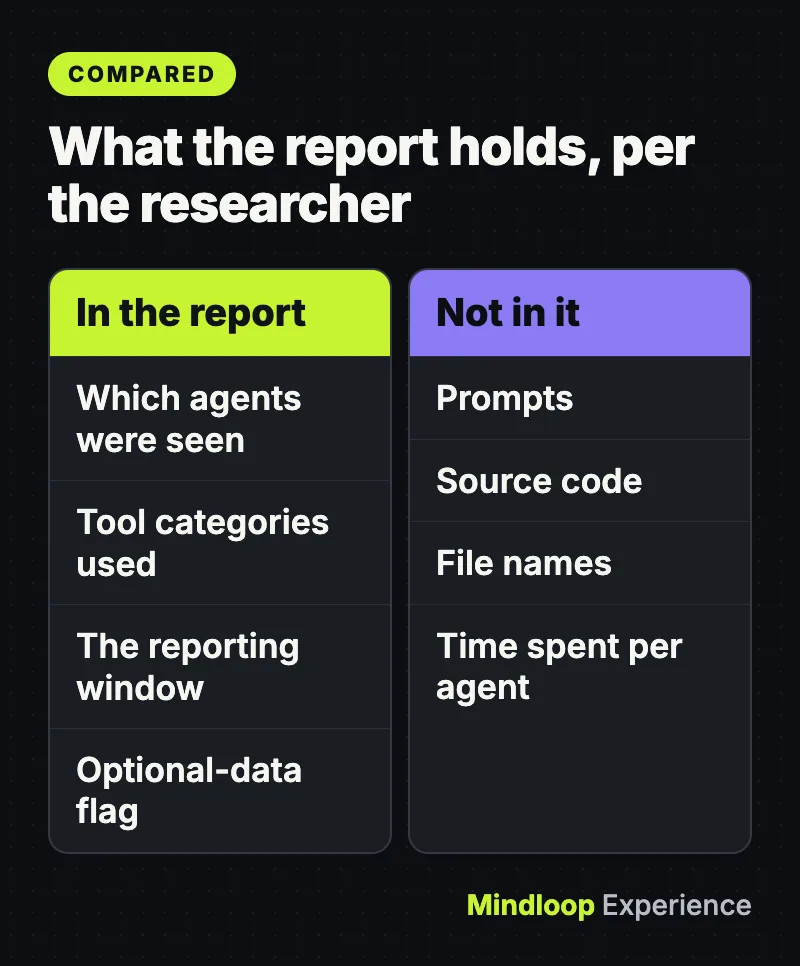
- Sent: a bitmap showing which agents and tool categories were seen during the reporting window. A program counts by its file name, so any program renamed
codex.execounts as Codex. - Not in the report: prompts, source code, file names or how long you used each agent. The researcher found none of those in it.
- Only with optional data on: the event is tagged as optional diagnostic data, so it is queued for upload only when “Send optional diagnostic data” is allowed.
It is also not confirmed on every PC. On the researcher’s Windows 11 ARM64 virtual machine (build 26200.9974), the feature was already switched on as a service experiment. A clean VM built from the public ISO had it off by default. As of 01:00 UTC on November 17, 2026, we found no Microsoft statement about the report.
There is one more wrinkle. Microsoft’s admin documentation says Required diagnostic data is the default setting. But Windows setup asks you to choose, and on the researcher’s clean US install of Windows 11 Home, the setup screen already had optional data selected. The researcher did not test UK or Gulf region setups, so check your own PC wherever you are.
Step 1: Check your diagnostic data setting
This takes a minute on any edition.
- Open Start, then Settings.
- Go to Privacy & security > Diagnostics & feedback.
- Expand Diagnostic data and look at Send optional diagnostic data.
- If the switch is On, optional data, including this kind of app-usage report, can be sent to Microsoft.
If the options are unavailable and the page says “Some settings are hidden or managed by your organization,” your IT team controls the level. Skip to the admin section below.
Step 2: Turn off optional diagnostic data
- In the same Diagnostics & feedback page, under Diagnostic data, set Send optional diagnostic data to Off.
- If the page still shows Tailored experiences, turn it off too if you don’t want diagnostic data used for personalized tips, ads and recommendations. Microsoft says newer versions replace it with Personalized offers.
- Go back to Step 1 and confirm the switch now reads Off.
Your PC then sends only Required diagnostic data, which Microsoft’s admin documentation describes as the minimum data required to keep the device secure, up to date and performing as expected. Optional data, by contrast, can include “app activity, such as which programs are launched on a device, how long they run” according to the same page. On Windows 11 Home and Pro, Required is the lowest level. The “Diagnostic data off” level works only on Enterprise, Education and Server editions.

Step 3: Check from PowerShell (optional)
These commands come from the researcher’s post and Microsoft’s policy documentation. Run them in PowerShell opened as administrator. We did not run them for this article.
See whether the telemetry service is running:
Get-Service DiagTrack | Format-Table Name,Status,StartType -AutoSizeSee whether the component’s DLL is loaded:
tasklist /m MissionControlAggregator.dllA result of AggregatorHost.exe only means the DLL is loaded. It doesn’t prove the coding-agent feature is switched on for your PC, and the setting from Step 1 is what decides whether the report can leave the machine.
Check whether a policy is forcing your diagnostic level:
reg query "HKLM\SOFTWARE\Policies\Microsoft\Windows\DataCollection" /v AllowTelemetryIf Windows says it can’t find the value, no computer-level Group Policy sets the level. An MDM or user-level policy can still apply, so the reliable sign is the “Some settings are hidden or managed by your organization” banner from Step 1. A value of 1 means Required only. A value of 3 means optional data is allowed.
Stick to the Settings switch and the policies below, which Microsoft documents. Disabling DiagTrack or deleting files under C:\ProgramData\Microsoft\Diagnosis isn’t a documented control and can break other Windows features.
Did you know?
The researcher copied cmd.exe to a file named codex.exe and ran it. Windows counted it as Codex, because the check matches program file names.
Step 4: For IT admins, lock it with policy
If you manage developer laptops, set the level centrally so users can’t turn optional data back on. Per Microsoft’s Policy CSP reference, the policy applies to Pro, Enterprise and Education.
- Group Policy: open Computer Configuration > Administrative Templates > Windows Components > Data Collection and Preview Builds, open Allow diagnostic data, set it to Enabled, choose Send required diagnostic data, and select OK.
- Lock the switch: enable the Configure diagnostic data opt-in settings user interface policy, which Microsoft says prevents users from changing their data collection settings.
- Intune or other MDM: set
./Device/Vendor/MSFT/Policy/Config/System/AllowTelemetryto1(Required). - Enterprise and Education only:
0(Diagnostic data off) is supported there, though Microsoft labels it “not recommended.”
Step 5: See and delete what was collected
- In Diagnostics & feedback, turn on Diagnostic data viewer, then select Open Diagnostic Data Viewer to browse the events your PC sends. The researcher found this report in DiagTrack’s upload queue, so don’t assume the viewer will show it by that name.
- Under Delete diagnostic data, select Delete.
Microsoft’s guide notes that deleting doesn’t stop your diagnostic data from being sent and doesn’t remove diagnostic data associated with your Microsoft account. To view and delete that, Microsoft points to the Microsoft privacy dashboard.
Common mistakes
| Mistake | Why it’s a problem | Do this instead |
|---|---|---|
| Uninstalling Claude Code, Codex or Cursor | The report counts file names; your tools aren’t the leak | Turn off optional diagnostic data |
| Disabling DiagTrack with a script | Not a documented control and can break other features | Use Settings, Group Policy or MDM |
| Assuming “Delete” stops collection | Microsoft says it only clears past device data | Change the setting first, then delete |
| Assuming a work PC follows your Settings choice | Policy overrides the switch | Ask IT what level the policy sets |
| Thinking prompts or code were uploaded | The researcher found only a bitmap of tool names | Keep secrets out of prompts for other reasons |
What it means for you
If you write code on Windows 11, the safe default is simple: turn off Send optional diagnostic data, and on managed machines set the policy to Required. That covers this report and the wider app-activity data Microsoft lists under optional data. One trade-off: Microsoft’s Windows Insider setup steps ask you to turn optional data on to join, so preview-build testers should expect to keep it on. The finding is also a reminder that AI coding agents are now a tracked product category for platform vendors, so expect more of this. If you run agents across several projects, our guide to running parallel AI agents with git worktrees and the 10-minute GitHub account audit cover the other half of developer hygiene, and our explainer on the fake Claude Code extension for Cursor shows why it pays to know what your tools load. More privacy and security guides are in Security.
Frequently asked questions
Does Windows 11 send my prompts or code to Microsoft?
Not in this report, according to the researcher. It is a bitmap of which coding agents and tool categories were seen during the reporting window, with no prompts, source code, file names or usage time found in it.
Can I turn off diagnostic data completely on Windows 11 Home?
No. On Home and Pro the lowest level is Required diagnostic data. The Diagnostic data off level works only on Enterprise, Education and Server editions, and Microsoft labels it not recommended.
Does deleting diagnostic data stop Windows from sending it?
No. Microsoft says Delete diagnostic data clears data for your device but doesn’t stop your diagnostic data from being sent, and doesn’t remove data tied to your Microsoft account. Change the setting first.
Is the coding agent check on every Windows 11 PC?
Not confirmed. On the researcher’s ARM64 virtual machine it was already switched on as a service experiment, while a clean VM from the public ISO had it off by default.
Quick quiz
How does the Windows component recognize a coding agent?
- By reading your prompts
- By the program’s file name
- By scanning your Git repos
A cmd.exe copy renamed codex.exe was counted as Codex, so the match is by file name.
Which setting decides whether the report can be uploaded?
- Send optional diagnostic data
- Activity history
- Windows Update
The event is tagged as optional diagnostic data, so it is queued for upload only when optional data is allowed.
What does an AllowTelemetry policy value of 1 mean?
- Diagnostic data off
- Optional data allowed
- Required data only
A value of 1 means Required only; 3 means optional data is allowed.
Sources
- Microsoft Support: Diagnostics, feedback, and privacy in Windows
- Microsoft Learn: Configure Windows diagnostic data in your organization
- Microsoft Learn: Policy CSP, System (AllowTelemetry)
- Microsoft privacy dashboard
- Microsoft Learn: Get started with the Windows Insider Program
- Xusheng Li: Windows 11 Is Collecting Data on Which Coding Agents and Developer Tools You Use (November 16, 2026)
- Hacker News discussion (November 16, 2026)




Write a response