
Your Mac is about to ask a harder question before any app gets the keys to everything. In macOS 27.3, when an app asks for Full Disk Access or the new System & App Protection Override, you can give it only the folders or apps it needs instead of your whole Mac. Apple published the guidance on November 16, 2026, and is openly linking the change to AI agents. This guide explains what is changing, which option to pick when the prompt appears, and how to clean up the apps that already have full access today.
Key takeaways
- macOS 27.3 lets you give an app only chosen folders or apps instead of Full Disk Access.
- Device Control and Data Access splits into System & App Protection Override and Accessibility.
- Permissions you granted before the update stay in effect, so review the Full Disk Access list yourself.
- Click Bypass System Protections only for a trusted app whose developer says it needs full access.
What Apple is changing in macOS 27.3
On October 2, 2026, Apple told developers that some apps were using Full Disk Access in ways that could put users at risk, exposing “files, mail, messages, and even browsing history” without users’ full understanding. It added: “As AI agents become increasingly capable and autonomous, the risks associated with this level of access will grow substantially.”
The changes arrived on November 16 in macOS 27.3 beta 2. Per Apple’s release notes:
- Device Control and Data Access is split in two: System & App Protection Override, for apps that control other apps, and Accessibility, for assistive tools.
- Granular grants: you are guided to allow only specific folders (Full Disk Access) or specific apps (System & App Protection Override).
- Ask every time: you can set an app to ask before each use instead of keeping access forever.
- A transparency indicator shows when an app is controlling another app through System & App Protection Override (9to5Mac says it sits in the menu bar).
- Old grants stay: “All app permissions previously granted by users will remain in effect.”
Full Disk Access isn’t going away. As 9to5Mac reported, you can still give it to an app, but the approval screen now spells out what you are giving up. macOS 27.3 is in beta. MacRumors expects the public release in December; Apple hasn’t given a date, so the details could still change.

Why this matters now
Full Disk Access is the strongest file permission on a Mac. Apple’s new support article says an app with it can “bypass system protections and access all of the files on your Mac, including your messages, emails, photos and videos, data from other user accounts, and more,” and can “read, change, delete, and export this data without asking.”

System & App Protection Override goes further. If you let an app bypass protections there, Apple says it “can fully control your Mac and apps,” see every window, “and capture every keystroke.”
Apple lists backup apps, disk cleaners, file indexers and security apps among the apps that ask, and notes that some ask “even when they don’t need it.” Apple’s October notice explains why it is acting now: the more capable and autonomous AI agents become, the more damage this level of access could do. On the Hacker News thread about the change, one reader said they counted 44 apps on their Mac that ask for Full Disk Access, had granted it to only 8, and that the others “work just fine without it.”
Step 1: See which apps already have full access
You can do this today on any recent macOS, without waiting for 27.3. It takes about two minutes.
- Choose Apple menu > System Settings.
- Click Privacy & Security in the sidebar.
- Click Full Disk Access (you may need to scroll down). This path is in Apple’s Mac User Guide.
- Write down every app whose switch is on. On macOS 27.2, also look for apps under Device Control and Data Access, the setting Apple is splitting in 27.3.
For each app, ask one question: does it really need to read everything? A backup app usually does. A note-taking app, a flashcard app or a chat app usually doesn’t.
Step 2: Remove access an app doesn’t need
On current macOS, turn the app’s switch off in the same list (macOS may ask for your password). In macOS 27.3, Apple’s support article says to select the app and click the Remove button (−), then enter your password and click Modify Settings if asked. Either way, Apple warns that “if you remove an app’s access, the app might not work as expected,” so open the app afterward and check that it still does its job. If it breaks, you can turn access back on.
Be strict with apps you no longer use and with anything you don’t recognize. If you are not sure what an app is, look it up before you put it back.
Step 3: When macOS 27.3 asks, choose folders or apps first
After you update, turning on access for an app in Privacy & Security brings up one of two prompts, depending on the app:
- Allow or don’t allow. Some apps, such as backup apps asking for Full Disk Access and screen readers or voice control tools asking for Accessibility, get a simple yes/no.
- Choose Folder or Choose Apps. Other apps get the new granular option.
When you see the second prompt, Apple’s support article says to:
- Click Choose Folder or Choose Apps.
- Check the app’s setup instructions for which protected folders or apps it needs.
- Choose only those.
- For System & App Protection Override, set each app to Ask First or At Any Time in the menu next to it. Pick Ask First unless the tool has to run unattended.
If you don’t know what to choose, Apple’s advice is to contact the developer and wait “until you’re sure” before giving access.
Step 4: Only bypass protections when you’re sure
If an app really needs everything, click Bypass System Protections. macOS 27.3 then makes you confirm each thing the app will be able to do:
| Permission | You confirm the app can… |
|---|---|
| Full Disk Access | Read, Change, Delete, and Export All Your Data; View Hidden and Recently Deleted Photos; Browse As You on Websites |
| System & App Protection Override | All of the above, plus Control Your Mac, Apps, and Settings; and Monitor Everything You Do |
Then click Turn On Full Disk Access or Allow System & App Protection Override, enter your password and click Modify Settings. Only do this for an app from a source you trust, that you installed yourself, and whose developer says it needs full access.
Did you know?
Before you can give an app System & App Protection Override, macOS 27.3 makes you confirm that it can Monitor Everything You Do, alongside reading, changing, deleting and exporting all your data.
Step 5: Limit an app you already trusted
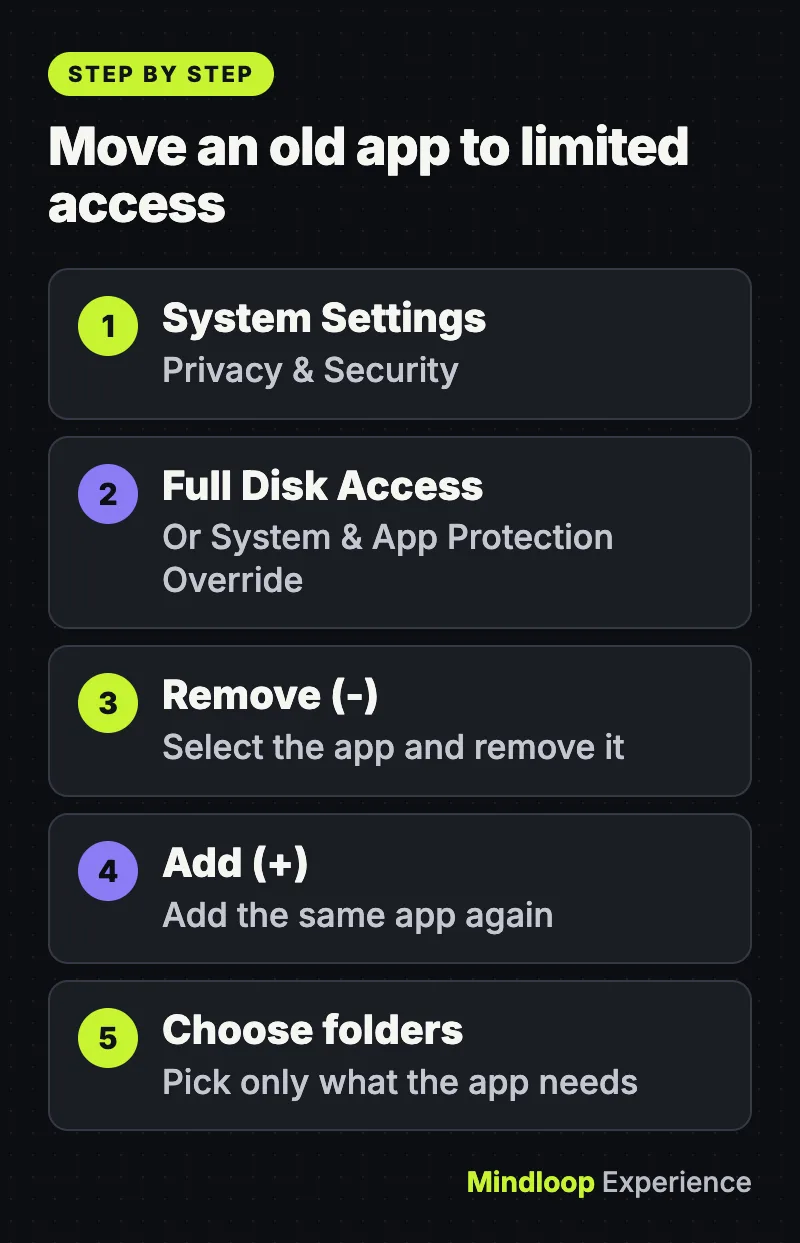
Old grants carry over, so an app you approved years ago keeps full access after the update. To move it to the new limited mode:
- Open System Settings > Privacy & Security > Full Disk Access (or System & App Protection Override).
- Select the app and click Remove (−).
- Click Add (+) and add the app again.
- If your Mac prompts you, choose specific folders or apps.
To change the folders or apps later, open Files & Folders or System & App Protection Override, click the Info button (i) next to the app, make your changes and click Done.
Common mistakes
| Mistake | What to do instead |
|---|---|
| Assuming the update removes old full access | It doesn’t. Review and re-add apps yourself (Step 5). |
| Granting Full Disk Access to make a prompt go away | Choose folders first; bypass only for apps that must see everything. |
| Giving an automation or AI tool control “At Any Time” | Use Ask First unless it must run unattended. |
| Expecting a read-only option | Apple’s support article doesn’t describe one. Limit folders instead. |
| Removing access and not testing the app | Open it afterward; add access back if it breaks. |
What it means for you
For most people the right habit is simple: give apps the smallest access that works, and review the Full Disk Access list a couple of times a year. It matters most if you use AI agents or automation tools, because those act on your behalf across apps, and Apple’s own notice names them as the reason for the change. Developers should expect users to grant only some folders and test for that, as Apple’s release notes ask. For the same habit on other platforms, see our guide to Windows 11 coding agent telemetry and the 10-minute GitHub account audit, and our explainer on the fake Claude Code extension for Cursor shows why it pays to know what your tools can reach. More guides are in Security.
Frequently asked questions
Will apps that already have Full Disk Access lose it in macOS 27.3?
No. Apple’s release notes say all app permissions previously granted by users remain in effect. To limit an old app, remove it from the Full Disk Access list and add it again, then choose specific folders if your Mac prompts you.
Can I give an app read-only access to a folder?
Apple’s support article doesn’t describe a read-only option. What it offers is choosing specific protected folders for Full Disk Access, or specific apps with Ask First or At Any Time for System & App Protection Override.
When will macOS 27.3 be released?
Apple hasn’t announced a date. macOS 27.3 beta 2 came out on November 16, 2026, and MacRumors expects the public release in December. Details could still change before then.
Why is Apple changing Full Disk Access?
Apple said some developers use it in ways that expose files, mail, messages and browsing history without users’ full understanding, and that the risks will grow as AI agents become more capable and autonomous.
Quick quiz
What happens to Full Disk Access you granted before macOS 27.3?
- It is revoked
- It stays in effect
- It turns into Ask First
Apple says previously granted permissions remain in effect, so you have to review them yourself.
Which setting lets an app control other apps in macOS 27.3?
- Files & Folders
- Accessibility
- System & App Protection Override
Device Control and Data Access is split, and System & App Protection Override covers apps that control other apps.
What should you click first when the new prompt offers it?
- Choose Folder or Choose Apps
- Bypass System Protections
- Modify Settings
Apple recommends choosing only the specific folders or apps an app needs, keeping system protections for the rest.
Sources
- Apple Support: If an app asks for Full Disk Access or System & App Protection Override on your Mac (November 16, 2026)
- Apple Developer: macOS 27.3 Golden Gate beta 2 release notes
- Apple Developer News: Updates to Full Disk Access in macOS (October 2, 2026)
- Apple Mac User Guide: Allow access to system configuration files
- 9to5Mac: macOS 27.3 includes new privacy controls for Full Disk Access and more (November 16, 2026)
- MacRumors: macOS 27.3 includes an important security fix (November 4, 2026)
- Hacker News discussion of Apple’s support article




Write a response