A strong password is not enough anymore, because passwords leak in breaches you never hear about. Two-factor authentication (2FA) adds a second check, so a stolen password alone doesn’t get anyone into your account. This guide ranks the methods using current US and UK government advice, then gives the exact menu path for Google, Apple, Microsoft, WhatsApp, Instagram, Facebook, Amazon, PayPal, X and your bank, all checked against each company’s help pages on November 19, 2026.
Key takeaways
- Passkeys and security keys are the strongest second step; authenticator apps come next and SMS codes last.
- Start with your email account, then Apple or Google, banking, PayPal, Amazon and social media.
- Save backup codes the day you turn on 2FA, or a lost phone can lock you out for weeks.
- Never approve a sign-in prompt you didn’t start, and never share a code with someone who contacted you.
Which 2FA method is strongest
Not all second steps are equal. Here is the order the official guidance supports, strongest first:
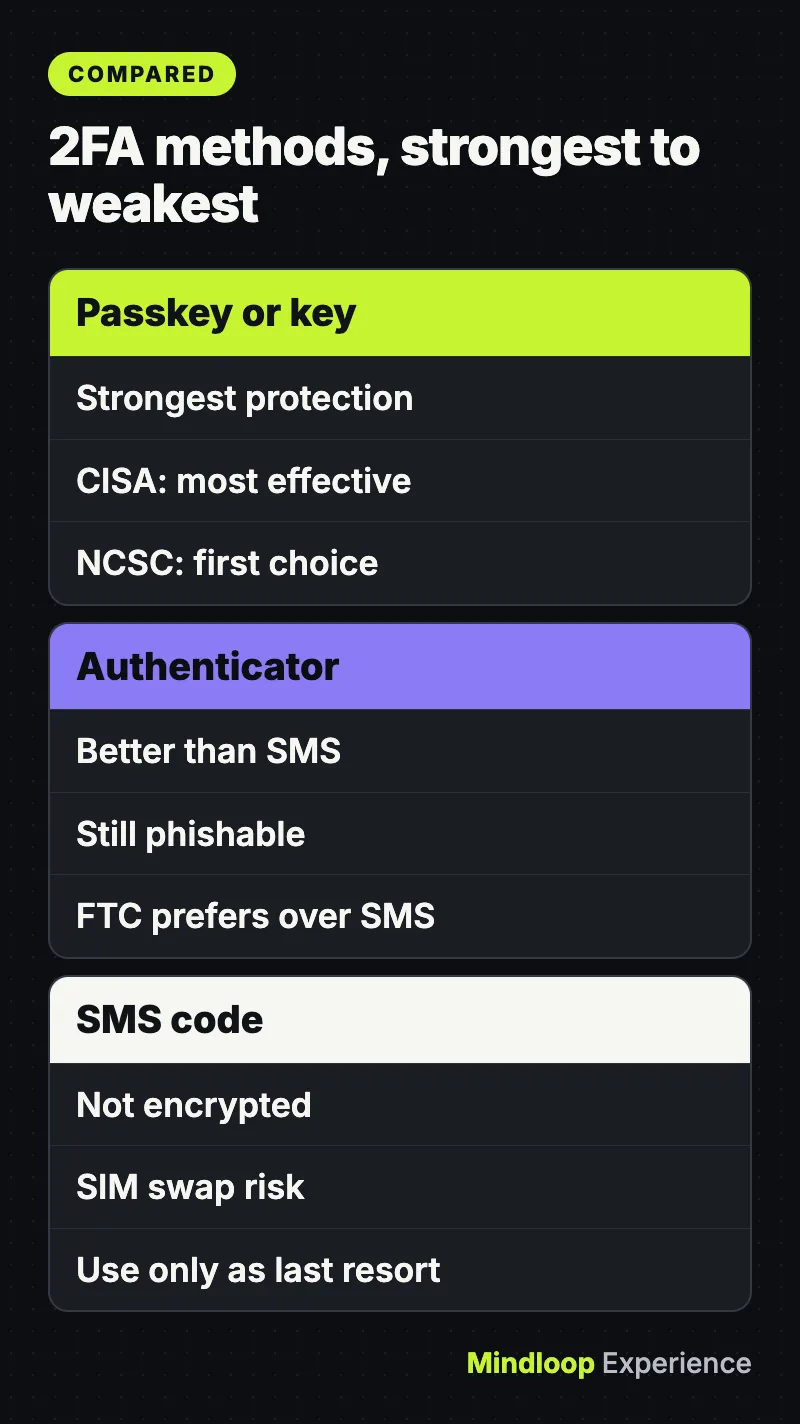
- Passkeys and hardware security keys. In its Mobile Communications Best Practice Guidance (version 2.0, November 24, 2025), the US Cybersecurity and Infrastructure Security Agency (CISA) calls hardware FIDO security keys “the most effective” and FIDO passkeys “an acceptable alternative.” The UK’s National Cyber Security Centre went further on April 23, 2026: it now recommends passkeys as consumers’ first choice of login, and says its technical report found them at least as secure as, and generally more secure than, the strongest password paired with two-step verification.
- Authenticator apps and in-app prompts. CISA says authenticator codes “are better than SMS, but they are still vulnerable to phishing.” The FTC also prefers an app or security key over text or email codes.
- Text message (SMS) codes. SMS messages are not encrypted, and a criminal can take over your number with a SIM swap, then receive your codes. CISA’s guidance, written for highly targeted people, says not to use SMS as a second factor at all.
Companies call it 2-Step Verification, two-step verification or two-factor authentication; the NCSC treats these, and MFA, as the same thing. One important caveat: CISA’s MFA page also says “any MFA is better than no MFA.” If SMS is the only option an account offers, turn it on anyway.
Where a site doesn’t support passkeys yet, the NCSC’s advice is to use a password manager for strong passwords and keep using two-step verification.
What you need before you start
- Your phone, unlocked and up to date. Most methods live on it.
- An authenticator app if you won’t use passkeys: Google Authenticator, Microsoft Authenticator or a password manager that generates codes all work.
- A safe place for backup codes: a password manager, or a printed copy kept at home.
- About 20 minutes. Start with your email, because anyone who controls your inbox can reset most other passwords. The NCSC lists email, banking, social media and online shopping as the most important accounts to protect, and the FTC adds tax filing sites and payment apps.
Also lock down your phone number itself. CISA recommends setting a PIN or passcode on your mobile carrier account, which is “a critical step in countering” SIM swapping. CISA also suggests adding MFA to the carrier account itself.
Did you know?
CISA calls a PIN on your mobile carrier account a critical step against SIM swapping, where a criminal moves your number to their SIM and receives your codes.
How to turn on 2FA, account by account
Google Account
- Go to myaccount.google.com and select Security & sign-in.
- Under How you sign in to Google, select Turn on 2-Step Verification and follow the steps.
Google lists passkeys and security keys for the strongest phishing protection, then Google prompts (a Yes/No tap on your phone), authenticator codes, and text or call codes. Signing in with a passkey skips the second step, because it proves you have the device. A new 2-Step Verification phone number can take up to 7 days for Google to trust.
Apple Account
On iPhone or iPad, open Settings, tap your name, then Sign-In & Security, and turn on two-factor authentication. On a Mac, use System Settings and the same path. On the web, sign in at account.apple.com and choose Upgrade Account Security (Apple). If your account was created with two-factor authentication, it can’t be turned off.
For extra protection, Apple supports security keys: Settings > your name > Sign-In & Security > Two-Factor Authentication > Security Keys > Add Security Keys. You need at least two FIDO Certified keys (up to six) and iOS 16.3 or macOS Ventura 13.2 or later on every signed-in device.
Microsoft account
- Sign in at account.microsoft.com/security.
- Select Manage how I sign in.
- Under Additional security, find Two-step verification and select Turn on (Microsoft).
Microsoft says it will start phasing out SMS for authentication and recovery on personal accounts, so use Microsoft Authenticator or a passkey. To add a passkey, go to account.live.com/proofs/manage, choose Add a new way to sign in or verify, then Face, Fingerprint, PIN, or Security Key (Microsoft).
On iPhone, tap You > Account > Two-step verification; on Android, go to Settings > Account > Two-step verification. Toggle Turn on two-step verification, create a password and confirm it, add an email address (or tap Skip), then choose Trust this device or Skip (WhatsApp). Note the change: WhatsApp is upgrading the old 6-digit PIN to a password, and existing PIN users can switch. Add the email: it helps you reset two-step verification if you forget it.
Instagram and Facebook (Accounts Center)
Instagram app: tap your profile picture, tap Menu (top right), then Accounts Center > Password and security > Two-factor authentication, pick the account and a method (Instagram). The options are an authentication app (Instagram’s recommended method, which can only be turned on in the mobile app), text message, or WhatsApp codes once SMS is on.
Facebook on the web: click your profile picture (top right) > Settings and privacy > Settings > Accounts Center > Password and security > Two-factor authentication (Facebook). Facebook offers a security key, an authentication app or SMS. Some people now see Meta Account settings instead of Accounts Center; the steps are the same idea.
Amazon
Go to Your Account > Login & security, select Edit next to Two-Step Verification (2SV) Settings, then Get Started (Amazon). You can get codes by text or an authenticator app; pick the app. Amazon also recommends setting up a passkey so you sign in with your fingerprint, face or device PIN.
PayPal
Click the Settings icon next to Log out, then Security, then Set Up next to 2-step verification. Choose Use an authenticator app and click Set it Up (PayPal). The NCSC names PayPal among services that already support passkeys.
X
Go to Settings and privacy > Security and account access > Security > Two-factor authentication and choose a text message, an authentication app or a security key (X). Since March 20, 2023, text message 2FA is only for X Premium subscribers, so most people should use an app. X shows a backup code when you finish setup; save it.
Your bank
Banks differ, so look in your banking app’s security or profile settings for app approval, biometric sign-in or passkeys, and turn on alerts. In the UK, the NCSC notes some banks use a separate card reader. In the UAE, The National reported in July 2025 that banks including ADIB and Citi began phasing out SMS and email codes for online transactions from July 25, 2025, in favor of approvals inside the bank’s app (the Central Bank told the paper it had issued no official notice). Never read a bank code to someone who calls you.
All accounts at a glance
| Account | Where to find it | Methods offered (Nov 2026) |
|---|---|---|
| Security & sign-in > Turn on 2-Step Verification | Passkey, security key, Google prompt, app, SMS/call, backup codes | |
| Apple | Settings > your name > Sign-In & Security | Trusted device codes, trusted phone number, security keys |
| Microsoft | account.microsoft.com/security > Manage how I sign in | Authenticator app, email, phone, passkey |
| You (or Settings) > Account > Two-step verification | Password plus email; passkey sign-in | |
| Menu > Accounts Center > Password and security | Authentication app, SMS, WhatsApp, backup codes | |
| Settings > Accounts Center > Password and security | Security key, authentication app, SMS, 10 recovery codes | |
| Amazon | Your Account > Login & security > 2SV Settings | Authenticator app, SMS; passkey sign-in |
| PayPal | Settings > Security > 2-step verification | Authenticator app; passkeys |
| X | Settings and privacy > Security and account access | App, security key, SMS (Premium only) |
Backup codes and what to do if you lose your phone
Backup codes are your spare key. Get them the day you turn on 2FA:
- Google: Security & sign-in > 2-Step Verification > Backup codes > Get backup codes. You get 10 single-use codes; Refresh makes a new set and kills the old one (Google).
- Facebook: you can get 10 recovery login codes for when you can’t use your phone.
- Instagram: backup codes sit under Two-factor authentication in Accounts Center (Instagram).
- X: keep the backup code shown at the end of setup.
If your phone is lost or stolen, sign in on another trusted device first and remove the lost phone. Then ask your mobile provider for a replacement SIM with the same number, as WhatsApp’s help pages suggest, so codes and account recovery keep working. Plan for the worst case too: Apple warns that if you lose all your trusted devices and security keys, you “could be locked out of your account permanently,” and Microsoft says regaining access without your security info can take 30 days.
By the numbers
10single-use Google backup codes
30 daysMicrosoft recovery can take
7 daysfor Google to trust a new number
Account recovery tips
- Add more than one way in. Microsoft “strongly” recommends three pieces of security info, and suggests a second email address as a backup.
- Register two security keys or passkeys, kept in different places. Apple requires at least two keys.
- Use the official recovery flow. On Amazon, try a backup method or trusted device first; if that fails, at the code screen choose Didn’t Receive the Code, then Two-Step Verification Account Recovery (Amazon).
- Keep your WhatsApp email current. If you get a recycled number whose previous owner set up two-step verification, WhatsApp says you must wait seven days before you can reset it (WhatsApp).
- Ignore “support” that contacts you. Amazon says it will never contact you first to ask for your password or codes, and Microsoft’s agents can’t send password reset links.
If you already got a breach email, pair this guide with our checklist on what to do after a data breach notice.
Common mistakes to avoid
- Stopping at SMS. Text codes are the weakest option. After you add an app or passkey, go back and remove the phone number as a 2FA method where you can. CISA notes that enrolling in an authenticator “does not automatically unenroll” SMS, which leaves a weak fallback. Malware like ArcticRAT on Android is built to steal texts, including one-time login codes.
- No backup codes. Without them, a lost phone can mean days or weeks locked out.
- Approving prompts you didn’t start. Attackers who have your password may flood you with push requests, hoping you tap Yes to make them stop. This is called MFA fatigue. If you didn’t just sign in, tap No (Google’s prompt asks exactly this) and change your password. CISA recommends number matching, where the app asks for a number shown on the sign-in screen, to block this “push bombardment.”
- Sharing a code. The FTC is blunt: never give a verification code to someone who contacted you first. Most account takeovers start with a phishing email, text or call, and a real company won’t ask you for a code.
- Trusting shared computers. Only tick “Don’t ask again on this device” or “Trust this device” on devices you own and don’t share.
- Forgetting work and developer accounts. If you code, the same logic applies to GitHub; see our 10-minute GitHub account audit.
Did you know?
Adding an authenticator app does not automatically remove SMS from your account, CISA notes, so the weak text-message fallback stays until you delete it.
The 20-minute plan
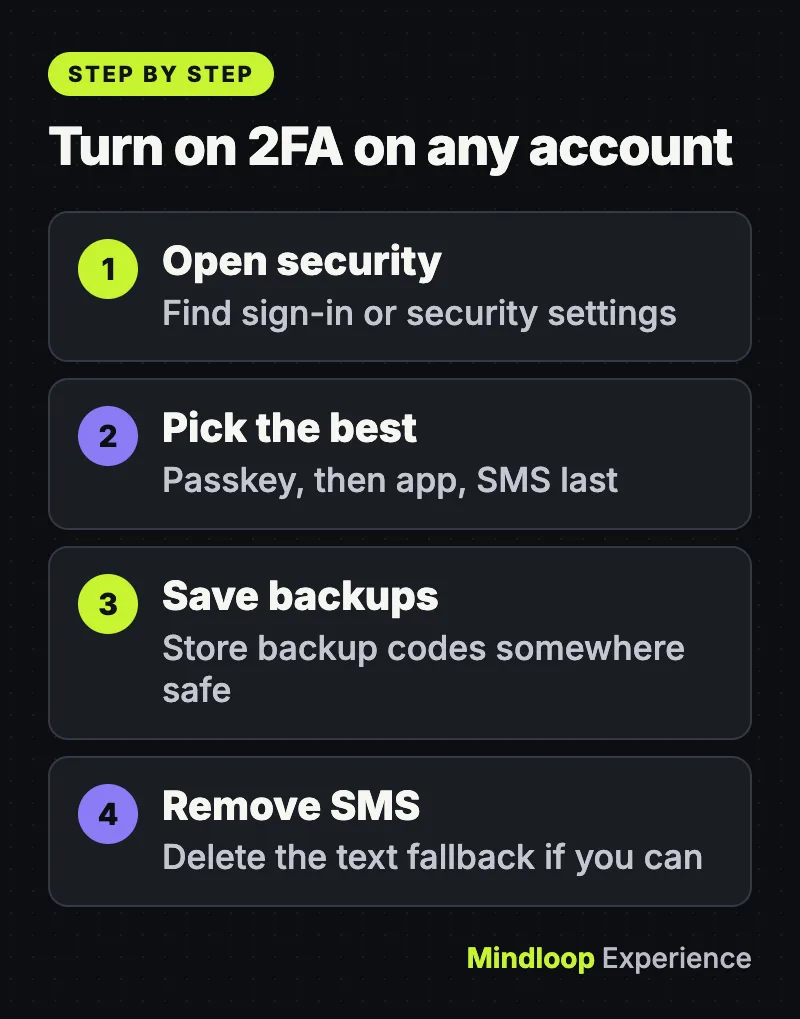
Do your email first, then your Apple or Google account, then banking, PayPal, Amazon and social media. Use a passkey where the site offers one, an authenticator app where it doesn’t, and SMS only as a last resort. Save backup codes for every account and set a PIN with your carrier. Then delete SMS as a fallback wherever the account lets you. For more guides like this, browse our Security section.
Frequently asked questions
Is two-factor authentication the same as two-step verification?
For everyday use, yes. The UK NCSC says 2-step verification is also known as two-factor authentication (2FA) or multi-factor authentication (MFA). Google and Microsoft call it 2-Step or two-step verification, Apple and Meta call it two-factor authentication.
Is SMS two-factor authentication still worth using?
It is better than nothing: CISA says any MFA is better than no MFA. But text codes are not encrypted and can be stolen with a SIM swap, so switch to a passkey, security key or authenticator app wherever the account offers one.
Do I still need 2FA if I use passkeys?
A passkey already proves you have your device, so Google skips the second step when you sign in with one. Keep 2FA on for accounts that still use passwords, and keep backup codes in case you lose your devices.
What happens if I lose my phone with 2FA on?
Sign in with a backup code or another trusted device, then get a replacement SIM with the same number from your provider. Without backup options, Microsoft says regaining access can take 30 days, and Apple warns you could be locked out permanently.
Quick quiz
Which second step does CISA call the most effective?
- SMS codes
- Hardware FIDO security keys
- Email codes
CISA’s guidance says hardware FIDO security keys are the most effective, with passkeys an acceptable alternative.
Since March 20, 2023, who can use text message 2FA on X?
- X Premium subscribers
- Everyone
- Nobody
X says text message 2FA is only for Premium subscribers, so most people should use an app or security key.
Someone calls and asks you to read back a verification code. What should you do?
- Read it out quickly
- Send it by text instead
- Refuse and hang up
The FTC says never share a verification code with someone who contacted you first.
Sources
Links last checked on November 19, 2026.
- CISA: Mobile Communications Best Practice Guidance (v2.0, November 24, 2025)
- NCSC: Leave passwords in the past – passkeys are the future (April 23, 2026)
- NCSC: Turn on 2-step verification (2SV)
- FTC: Use two-factor authentication to protect your accounts
- Google: Turn on 2-Step Verification
- Apple: Two-factor authentication for Apple Account
- Microsoft: How to use two-step verification with your Microsoft account
- WhatsApp: How to manage two-step verification settings


Write a response